Get instant access
Enter your email to get the full 11-step guide, including the three Claude Code prompts that build the app.
Start with: your LinkedIn connections and invitations.
Finish with: a filtered list of people to review and contact yourself.
The app creates the list. You send the messages yourself.
Download the PDF guide (16 pages)
Who is worth contacting first?
Say you are launching a service for operations leaders. Your example buyer is a COO at an industrial company. Your network holds people like these:
| Person | Company | Result |
|---|---|---|
| Chief Operating Officer | Industrial company | Possible match |
| Recruiter | Staffing agency | Excluded by your rules |
| No job title | Company listed | Needs review |
Jev reads the available text. Your rules turn its answers into a shortlist you can inspect.
What you need
| What | Why |
|---|---|
| Your LinkedIn data export | Supplies the contacts: Connections.csv and Invitations.csv |
| Claude Code with the TypeSafe skill | Builds the app and calls Jev |
| A TypeSafe API key | Lets the app use Jev |
| GitHub and Vercel accounts | Hosts the private app |
| An Apify token (optional) | Adds public profile details for your best matches |
Step 1: Export your LinkedIn files
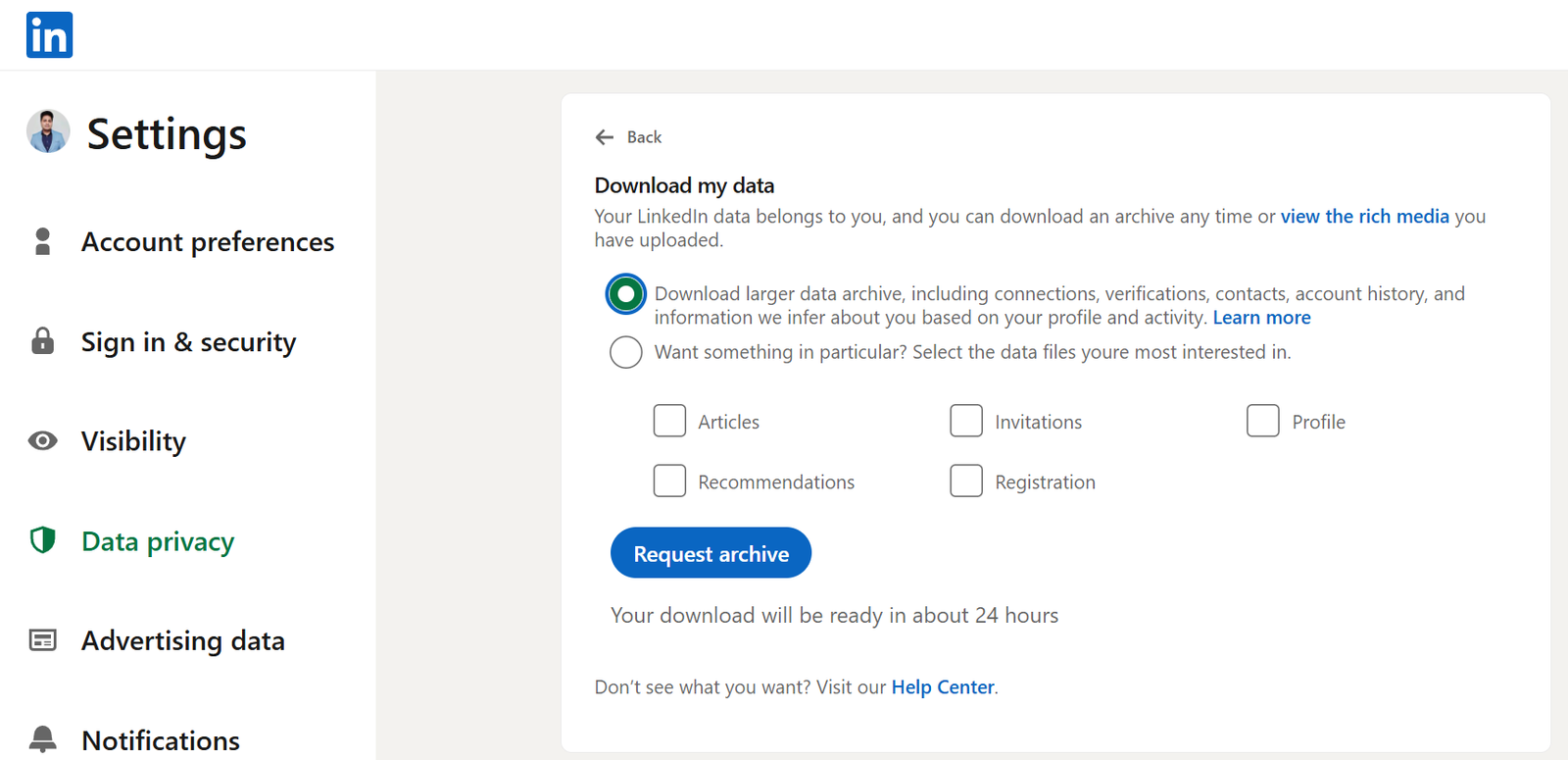
- Open Settings & Privacy, then Data privacy.
- Choose Get a copy of your data (Download your data).
- Select Download larger data archive.
- Click Request archive. LinkedIn says the download is usually ready in about 24 hours.
- Open the ZIP from LinkedIn's email and keep these two files: Connections.csv and Invitations.csv.
Step 2: Set up Jev in Claude Code
If you completed Part 1, skip the installation commands.
Run in your terminal:
claude plugin marketplace add typesafe-ai/skills
claude plugin install typesafe@typesafe-ai
Open Claude Code and invoke the skill:
/typesafe:typesafe-ai
Create your TypeSafe API key at console.typesafe.ai. The app will use it as TYPESAFE_API_KEY.
Step 3: Accounts and access
Prepare these accounts before building.
- GitHub and Vercel. Sign in to both. In Claude Code, ask: "Check my GitHub and Vercel access. Help me connect them."
- Apify for extra profile details. Create an account. Open Console, then API & Integrations, and create a token for this app.
- Keys for the deployed app. Once Claude creates the Vercel project, add
TYPESAFE_API_KEYandAPIFY_TOKENin Settings.
Keep the keys out of the prompt and the GitHub repository.
Step 4: Plan the app in Claude Code
Press Shift+Tab to switch to Plan mode, then paste prompts 1 to 3 together.
Prompt 1 of 3: the app and your data
Use the TypeSafe skill. Plan a private web app called LinkedIn Radar. Explain the plan in plain English before building. Use Next.js, TypeScript and Tailwind.

I will upload my own Connections.csv and Invitations.csv in the app. Do not expect files in this chat. Create one upload slot for each file, then separate Connections and Invitations tabs.

Detect files by their columns. Skip any Notes preamble before the Connections header. Parse quoted fields, dates and blanks. Show record counts and missing fields.

Add an editable buyer profile: my offer, target roles, industries, geography, company size and exclusions. Ask me for these values. Add a profile grid, filters and CSV export.
Prompt 2 of 3: the Jev questions and shortlist
Use Jev via the official TypeSafe SDK. For connections, classify role, any industry signal and explicit exclusions using the supplied title and company text. Keep unknown and unclear answers available.

Create Tier 1 for strong matches, Tier 2 for uncertain or missing details, Tier 3 for weaker matches, and Rejected for explicit exclusions. Show the reason for each tier. Code handles dates, matching and tier rules.

For incoming invitations with a message, classify intent and stated seniority. Put empty messages in No signal. Match outgoing profile URLs to Connections in code. Unmatched status stays unknown.

Add a Classifier Studio to edit questions, answer options and cutoffs. Include Test on 25 rows. Cutoff edits reuse saved answers. Question edits require rescoring.
Prompt 3 of 3: enrichment and deployment
Add optional Apify enrichment for selected profiles. Inspect the actor's current schema and price first. Show estimated cost and get approval before a five-profile test or larger run. Rescore using returned evidence.

Keep missing location, size, ownership, revenue and activity unknown. Never infer them from a company name. Show the evidence for each result.

Keep keys server-side. Protect the app and API routes with authentication. Keep uploaded contacts out of GitHub and logs. Send only selected scoring fields to Jev and selected URLs to Apify.

Add Run, Pause, Resume and elapsed time. Track Jev and Apify costs separately. Test with synthetic files, then deploy to Vercel from a private GitHub repo. The app sends no LinkedIn messages.
Step 5: Build from the plan
Review the plan, then give Claude Code this instruction:
Build the approved plan. Test both CSV schemas and missing fields. Show me the test results, help me enter keys securely, then deploy the protected app and send me its URL.
- Check the tests. File parsing works. Blank titles go to Review. Invitations with no message skip intent scoring.
- Open the deployed URL. Sign in and confirm you see the two upload slots. If a key or account is missing, resolve that first.
Step 6: Upload your files
Open LinkedIn Radar and upload the CSVs from Step 1.
- Connections.csv activates the Connections tab.
- Invitations.csv activates the Invitations tab.
Either file works on its own. Upload both for URL matching. Check the record counts and missing job titles before running Jev.
Step 7: Define who you want to reach
Enter your own criteria. This example shows how:
| Field | Example |
|---|---|
| Offer | Operations consulting |
| Target roles | COO, Chief of Staff, operations leaders |
| Company fit | Manufacturing, distribution or logistics |
| Geography | United States, checked after enrichment |
| Exclude | Recruiters and agencies selling to me |
Jev uses these criteria to judge fit. Change them for your own offer.
Step 8: Test on 25 rows before the full run
Open Classifier Studio and choose Test on 25 rows. Check three things:
- Does a COO match the role? The answer should follow your buyer criteria.
- Does a recruiter get excluded? Only if your exclusions explicitly include recruiters.
- What happens with a blank title? The role stays unknown and the row goes to Review.
Wrong answer? Edit the question and test again. Wrong tier? Adjust the cutoff using the saved answers.
Step 9: Score your network
Run the questions you approved on the uploaded rows.
- Connections: filter by target role and tier, and inspect why each person made the shortlist.
- Incoming invitations: separate relevant messages from sales pitches and other requests. Review No signal separately.
- Progress and cost: watch completed rows, elapsed time and actual usage. Pause or resume when needed.
Jev judges the text. The app applies your shortlist rules.
Step 10 (optional): More detail for the best matches
Select the profiles you want Apify to enrich. Enrich your shortlist first to control the spend.
- Start with five profile URLs. Check the actor, its estimated cost and the fields it actually returns before a larger run.
- Add the available public details. Use the returned location, headline, company details or activity. Leave absent details unknown.
- Run the second Jev pass. Check fit against your geography and company criteria using the added evidence, then review the new tiers.
Step 11: Contact the right people first
Filter Tier 1, inspect the evidence, then export the CSV.
| Example shortlist record | |
|---|---|
| Role | Chief Operating Officer |
| Company | Industrial business |
| Reason | Target role and industry match |
| Next step | Open profile and verify fit |
- Choose the right people. Review their profiles and the reason for each match.
- Make your message relevant. Use what you learned to write your own outreach.
The result
A relevant list for your next outreach campaign. Your LinkedIn export supplies the contacts, your buyer profile defines a good match, and Jev helps you sort and review them.
Save this tutorial and start with your own export. Download the PDF guide
Reference links
See Dapto's AI agents at work
Two of the agent systems we build: Sales Agents and Customer Service Agents.
I Built an AI Sales Team That Finds and Qualifies Leads for Me
Agents that find the companies that need what you sell, research them and qualify them.
AI Agent for Website, Email, Lead Qualification and Customer Support
Agents that answer customers, complete their requests, qualify leads and hand off to your team when needed.
Want AI agents doing this work for you?
Dapto builds custom AI agent systems that run inside the software you already use and do the work across it, for sales, customer service, marketing and operations. Every agent works from your Brand Core, and nothing goes live without your approval.
Book a call: a working session where we map how your work runs today, find where an agent could realistically take over, and agree what to build first.
Prefer to start on your own? Our Customer Service Agents run self-serve with a 7-day trial.